See your full AI chatbot conversation history in one dashboard.
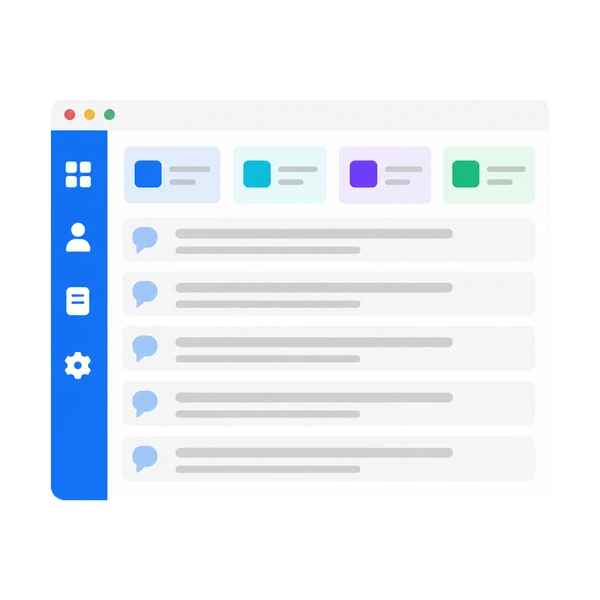
What are visitors asking your chatbot, and how is the AI answering? In the monoshiri AI dashboard, you get full conversation transcripts, rating totals, and question-category analysis all on a single screen.
Available on the free plan. No credit card required / 150 answers per month at no cost.
Does your chatbot look like this after you installed it?
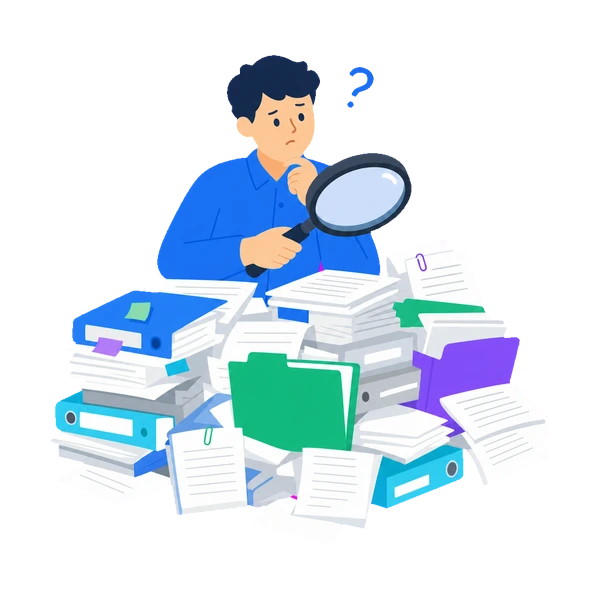
No visibility into what visitors ask
You added a chatbot, but nobody knows what questions are actually coming in. There's nothing to base improvements on.

No way to tell if the answers helped
Did the AI's answers actually help your visitors? Without numbers, you can't decide what to fix first.

Unanswered questions go unnoticed
Every question the AI couldn't answer points to information your site is missing. With no way to spot them, the same gaps keep costing you leads.
What you can do in the AI chatbot dashboard
Open "Chat Widget" in the monoshiri AI dashboard to see exactly how your installed chatbot is performing.
Read visitor questions and AI answers in full
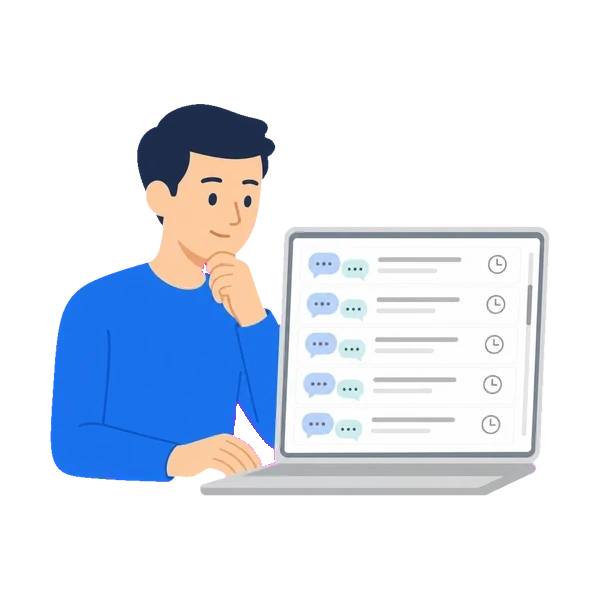
The conversation list shows date and time, the opening question, message count, and feedback. Open any single entry to see the visitor's messages and the AI's answers in full, in chronological order.
- Filter by period (last 7 days / last 30 days / all time)
- Filter by rating (helpful / not helpful / unrated)
- Loads 20 at a time so you can go back through past conversations
Turn "helpful / not helpful" into numbers you can act on
Visitors can rate the AI's answers. The dashboard totals those ratings so you can see, in numbers, whether your answers are landing.
- Four metrics: total conversations, AI answers, feedback rate, and negative rating rate
- Daily trend charts for conversations and ratings (last 7 / 30 / 90 days)
- On-screen warning when the share of negative ratings runs high

Let AI sort the most common questions for you
Run "Analyze categories" and the AI automatically classifies visitor questions, so you can see at a glance which topics people ask about most.
- Top 10 frequently asked question categories with counts
- Feedback rate shown per category
- Lists up to 30 answers that were rated "not helpful"
Hand visitors to your contact form when the AI can't answer
When the documents hold no answer, the chatbot replies with a polite message that doesn't expose the gap. Set a contact URL and that message can include a link that guides visitors to your contact form.
- Set the contact URL under "Design" in the dashboard
- Handoff messages are available in Japanese, English, Chinese, and Korean
- Up to 5 frequently asked question buttons can be configured

View conversation logs from the WordPress admin too
Set your integration key in the official WordPress plugin "monoshiri AI Widget" and a "Conversation Logs" item appears under "monoshiri AI" in the WordPress left menu. Check the week's questions while you're already updating posts.
- Shows four figures: conversations, AI answers, helpful, and not helpful
- The list shows date and time, the opening question, message count, and feedback
- Open a conversation to read the full exchange between the visitor and the AI
- The integration key is read-only. It cannot change settings or send messages
- Only users with site administrator privileges can open the conversation logs
Conversation log viewing requires plugin v1.1.1 or later.
Don't just read conversation history — use it to improve
Ten minutes with your conversation history once a week is enough to steadily improve your chatbot's answers.
Open the conversation logs
Review the week's conversations from the dashboard or from the WordPress admin.
Pick out the questions that went unanswered
Start with the answers rated "not helpful" and choose just three questions that weren't answered well.
Add the missing documents
Upload documents that answer those three questions. The next visitor who asks will get a real answer.
Frequently asked questions about conversation history and the dashboard
Related pages
Explore more—see the full AI chatbot, pricing, and other integrations.
Add to WordPress free
Install the free AI chatbot in 5 minutes with the official plugin.
Learn morePricing (free plan available)
Compare the free and paid plans. Start with no setup fee and no credit card.
Learn moreFrequently asked questions
Common questions before you start — pricing, installation and security.
Learn moreSecurity and data handling
Where your data is stored, how it is encrypted, and why we never use it for AI training.
Learn more
Ready to see what your visitors
are actually asking?
Installation and conversation history both work on the free plan.
Start running your AI chatbot at zero cost.
No credit card required / 150 answers per month at no cost