Build a site on Wix and the App Market offers plenty of chat options. There is a built-in chat too. Add one condition -- "it has to answer from our own documents" -- and the list collapses.
The reason is clear. A system that answers from what is written on the site and a system that answers from files you supply are two different things. A price list in PDF, a set of terms, an internal procedure document: if you want answers grounded in those, you are embedding an external chatbot.
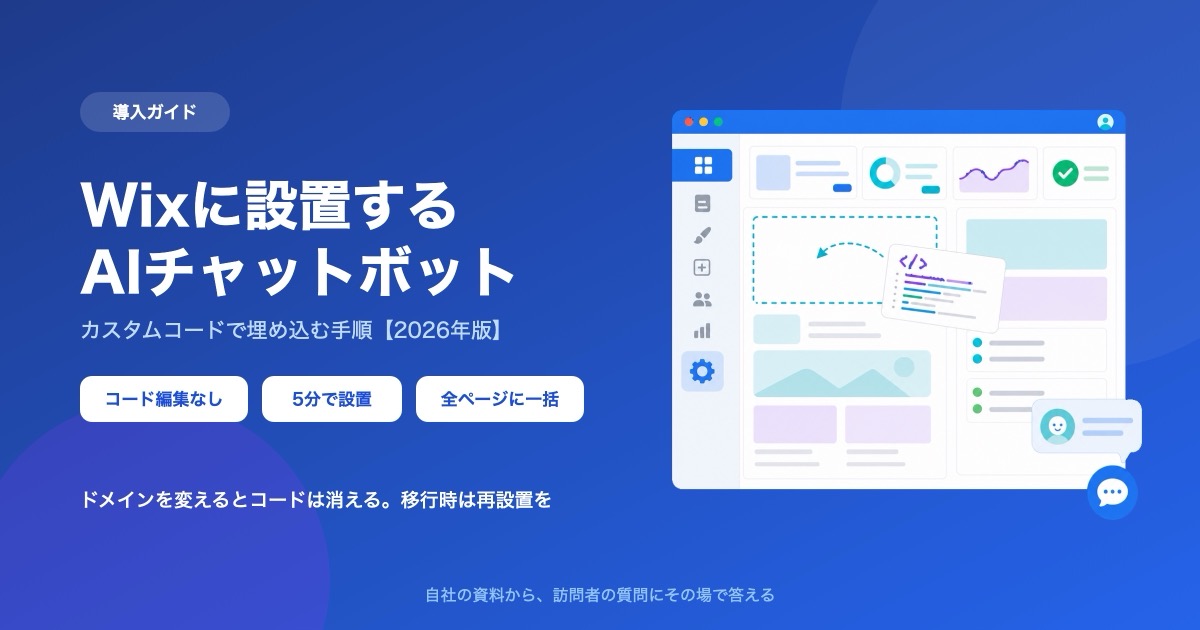
This article walks through installing an AI chatbot on a Wix site, following the actual dashboard screen. It also covers the Wix-specific spec where changing your domain deletes the snippet, and how the roles of the built-in chat and an external chatbot differ.
What this article covers
- Where a chatbot goes on Wix, and how it differs from an HTML embed element
- The three-step procedure, with the exact place in the dashboard
- Why a connected domain is a prerequisite, and how to think about cost
- The Wix-specific trap: changing domains deletes your code snippet
- How the built-in chat and an external chatbot divide the work
1. The place is Settings then Custom Code
On Wix, the entry point for an external script is custom code in the dashboard. It lives on the dashboard side rather than in the site editor, which is where most people lose time looking for it.
Open Settings in your site dashboard, find the Developer Tools section, and open Custom Code. Code added here is output on every page of the site, or on the pages you specify.
How it differs from an HTML embed element
Wix has one other place that accepts code: the HTML embed element you place on a page in the editor. The names are similar enough to confuse, but it is not suitable for a chat widget.
An HTML embed element draws only inside the box (iframe) you placed on the page. A chatbot is designed to float fixed at the bottom-right of the screen and expand when clicked, so trapped inside a box, the button gets clipped and the panel cannot open past the frame.
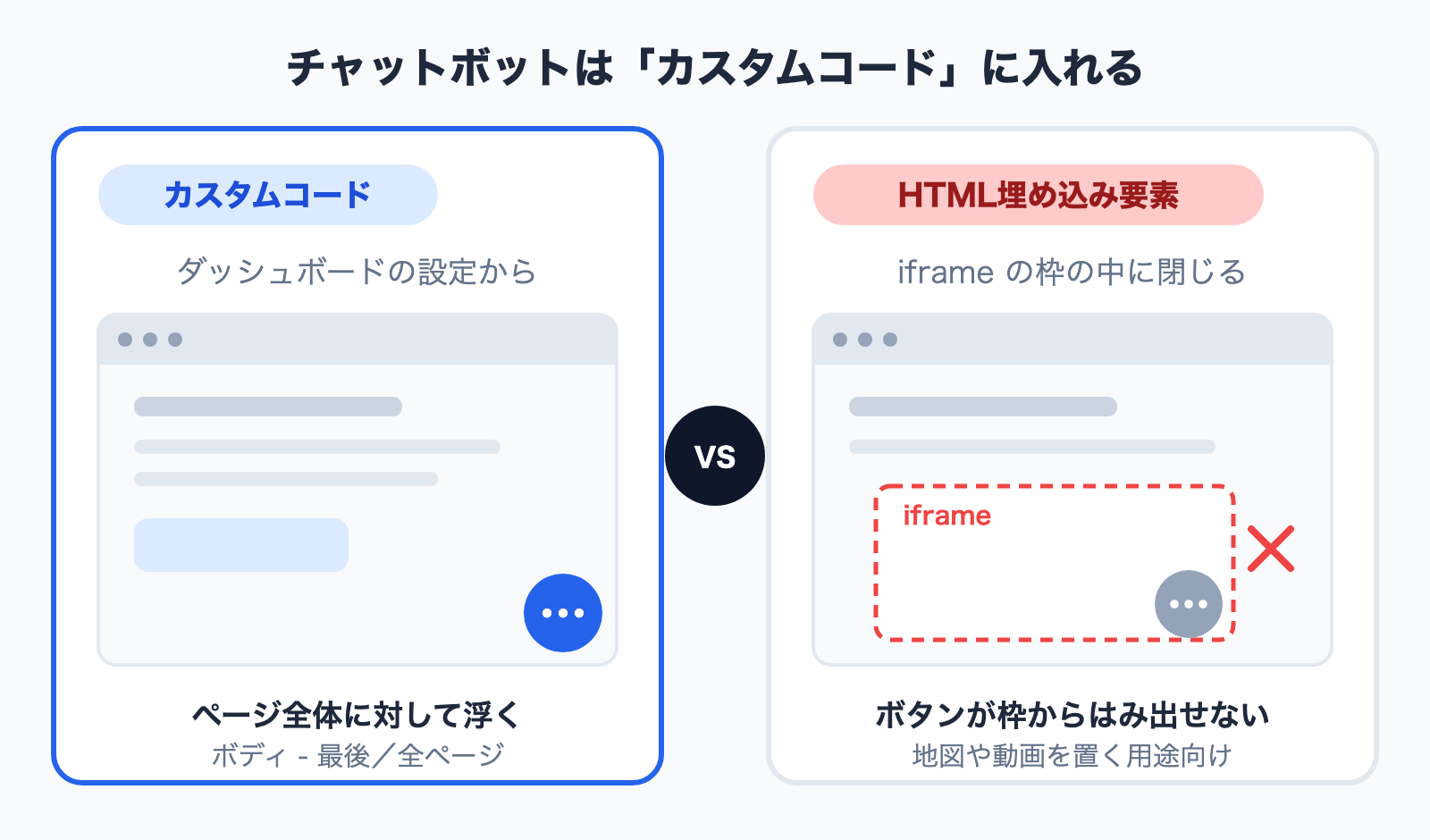
Anything that should float over the entire page goes in custom code; anything you want at a specific place and size goes in an HTML embed element. With that split in mind you will not get stuck.
The procedure is the same whether the site was built in the Wix Editor or the Wix Studio editor, because custom code is a dashboard feature rather than an editor one.
2. Installation (three steps)
The example below uses Monoshiri AI, the product we build. It takes about five minutes, and you never write code.
Step 1: Get the embed snippet
Create a Monoshiri AI account, create a widget in the admin, and copy the embed snippet. It is a single script tag:
<script async src="https://monoshiri.ai/widget/embed.js" data-api-key="(your issued key)" data-api-url="https://api.monoshiri.ai"></script>
You do not need to register the destination domain in advance. The same snippet just works.
Note that Wix expects custom code to load over https. The snippet above already does, so it pastes in as-is.
Step 2: Open custom code in the dashboard
Go to Settings then Developer Tools then Custom Code in your site dashboard, and add a new code snippet.
The official help states two prerequisites here:
- The site must be published
- A domain must be connected
Without both, you cannot proceed to add custom code. The next section covers what that implies.
Step 3: Choose Body - end and all pages, then save
After pasting the code, you pick two settings.
Where to place the code offers Head, Body - start, and Body - end. Choose Body - end for a chatbot. The head slot runs before the page itself is built, so it is the slot most likely to affect perceived load speed. A chat widget only needs to appear at the bottom-right after the page has rendered.
Which pages to apply it to offers all pages or specific pages. Start with all pages. It applies automatically to pages you add later, so nothing gets forgotten. Questions about pricing or booking come up on the home page too, and narrowing the scope means missing them.
If you choose all pages, you can also decide whether the code loads once per visit or on every page the visitor opens. A chat widget works either way.
Save and open the site to confirm a chat button appears at the bottom-right. That completes the installation.
Full requirements with screenshots are on the Wix integration page. For widgets in general, beyond Wix, see the chat widget implementation guide.
3. Why a connected domain is a prerequisite, and how to think about cost
This is the first wall on Wix.
The prerequisites the official help lists for custom code are a published site and a connected domain. And connecting a custom domain on Wix requires upgrading to a Premium (paid) plan.
The consequence: on the free plan -- that is, on a wixsite.com subdomain -- you cannot install a chatbot through custom code.
Which paid tier makes custom code available is something this article will not assert, because plan structures get revised. Confirm on Wix's official help and pricing pages before you subscribe.
The framing is the same as with STUDIO. If you are using a Wix site for a business, you will end up on a paid plan anyway -- to hide the ad banner and to use a custom domain. Custom code is better understood as one of the things that becomes available once you are on a paid plan.
The chatbot itself is a separate cost. For reference, here are Monoshiri AI's numbers.
| Free | Light | Standard | Pro | |
|---|---|---|---|---|
| Monthly (tax incl.) | 0 yen | 2,980 yen | 7,980 yen | 29,800 yen |
| AI answers per month | 150 | 1,000 | 3,000 | 20,000 |
| Folders | 1 | 5 | 10 | 30 |
| Files per folder | 30 | 100 | 300 | 300 |
| Chat widget | 1 (150/month) | 1 | 1 | 1 |
As of September 2026. See pricing for current details.
Treat the free plan as a way to confirm it works on your own site. Once a chatbot starts doing its job, 150 answers a month arrives at a pace of five a day.
The ways "free" gets sliced are laid out as three patterns in how to add a chatbot to WordPress for free. The reasoning carries over to Wix unchanged.
4. Changing your domain deletes the code
This is the spec most often missed on Wix.
Custom code snippets are saved against the connected domain. Wix's official help states that changing your domain deletes the code snippets.
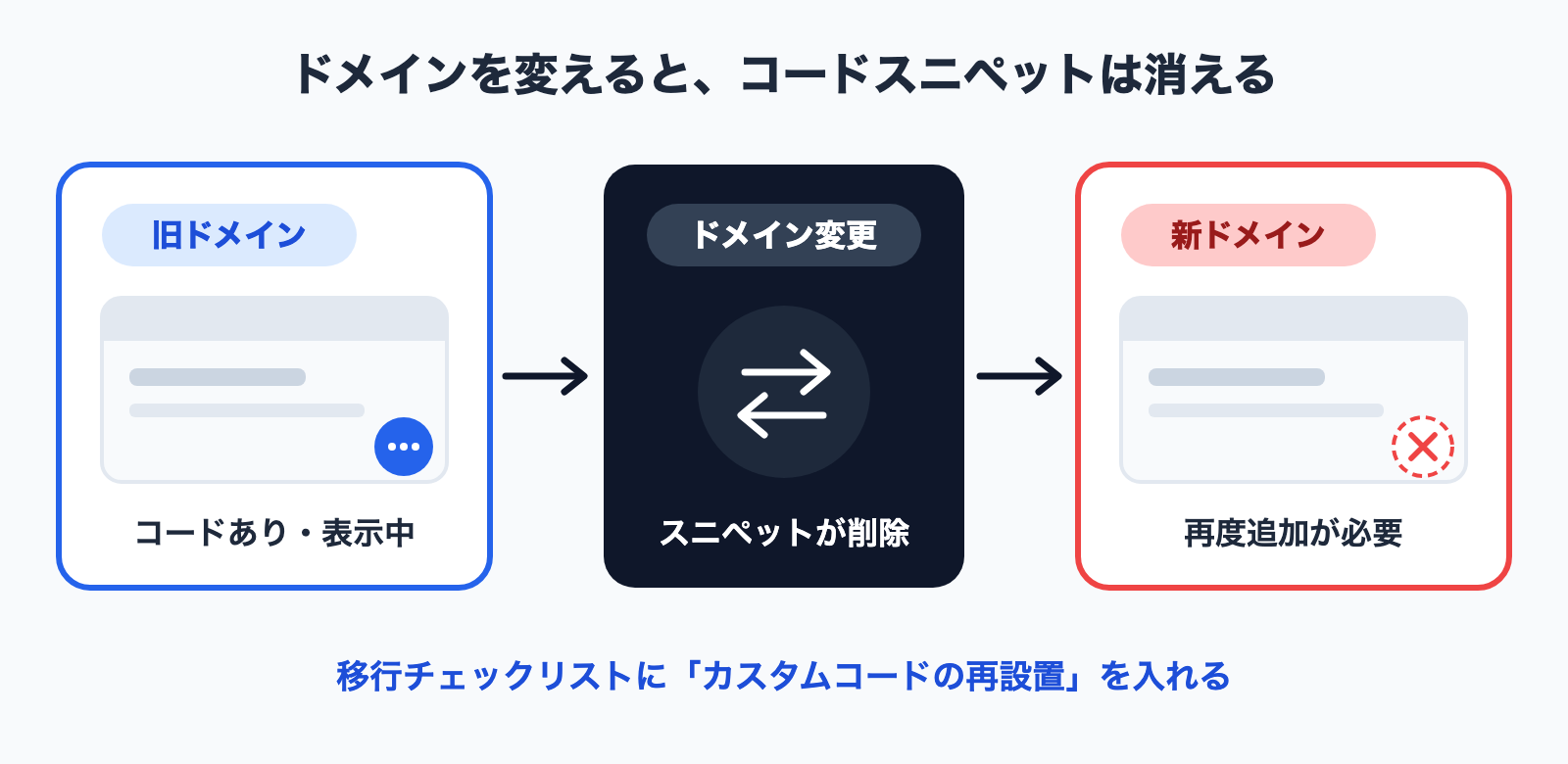
What makes it nasty is how quietly it happens. The day after a domain change, the chatbot is simply gone. Visitors only register that there is no window; you cannot see a reason for the drop in inquiries either.
The fix is simple.
- After changing the domain, add the custom code again. Put it on the migration checklist
- If you are planning a move to a custom domain or a domain switch, include "chat button visible" in the post-cutover checks
- Before migrating, keep a copy of the snippet you have installed
On Shopify, swapping the theme removes the installation. On Wix, changing the domain removes it. What the installation is attached to differs by platform -- knowing that is what prevents the accident. The Shopify side is covered in how to add a chatbot to Shopify.
5. How the built-in Wix chat divides the work
Wix has a built-in chat feature. "Isn't that enough?" is a fair question, so here is the distinction.
First, context: Wix's built-in chat has been going through a refresh in 2026. According to the official help, Wix AI Site Chat can no longer be installed on newly created sites as of March 2026, and Wix Smart Chat is offered as its successor. Names and availability change, so check Wix's official help for the current state.
The difference in role shows up in what the answers are grounded in.
| Wix built-in chat | External AI chatbot | |
|---|---|---|
| Basis for answers | Public information shown on the site | Documents you upload yourself |
| Reading PDF / Word / Excel | Not the intent | Yes |
| Answering things not on the site | No | Yes |
| Handoff to a human | Built in | Route to a contact channel |
| Effort to install | Built in, configuration only | Paste one line into custom code |
Per the official help, Wix's built-in AI chat scans the public data displayed on your site to answer. For guiding visitors through what is already written on the site, that is a natural fit.
It is not the right tool for cases like these:
- The price list exists only as a PDF. The site just says "contact us"
- Terms or contracts are long and the full text is not published on the site
- You want answers grounded in internal procedures or manuals
- The site copy and the actual operating conditions have drifted apart and you want correct answers before you rewrite the site
Those call for a chatbot that answers from documents you upload. Monoshiri AI is that type.
You are not forced to pick only one, but two chat buttons stacked at the bottom-right confuses visitors, so decide which is primary and consolidate.
6. Pairing with LINE
Routing visitors from a Wix site to a LINE Official Account is another common request, and it needs untangling.
What LINE Official Account provides is primarily a path to add you as a friend. It is not a mechanism for embedding the LINE chat screen inside your site so a conversation finishes there (specifications change, so check LINE's official documentation for the current state).
So with a LINE link on the site, the visitor has to move to the LINE app, add you as a friend, and only then ask. For someone who just wants an answer right now, that is three steps of friction.
The practical split looks like this.
- Questions the visitor wants answered on the spot -- answer immediately in the chat widget
- People you want an ongoing channel with -- route them to the LINE friend-add
Monoshiri AI also supports LINE integration, so the web widget and automated replies on a LINE Official Account can draw on the same documents and give the same answers. There is more on this in running a knowledge base through LINE.
7. What to upload first, and what trips people up
What it can answer is set by what you feed it
Installed and nothing else, a chatbot answers nothing. There is no scenario design; upload text or PDFs and the AI answers from their contents.
For the service and storefront sites Wix is usually used for, these five are the efficient starting point.
- Price list -- plans, options, whether there is a setup fee
- Services and scope -- what you do and how far, including what you do not do
- Booking or application flow -- the steps and timeline from inquiry to start
- Hours, access, and coverage -- a surprisingly common source of questions
- The FAQ page -- copying what is already on the site is enough
The trick is not writing anything new: turn existing pages and handouts into files as-is. Trying to write fresh copy is what stalls the rollout.
Other things that trip people up
The button overlaps something at the bottom-right. Wix sites often have the built-in chat button or app-added floating elements in the same corner. If they collide, move the button to the bottom-left from the Monoshiri AI admin.
How it looks on a phone. Most widgets switch to full-screen on smartphones. Always open the site on a real phone after installing.
Saved but not published. Wix only reflects edits on the live site once you publish. After saving custom code, check that you published.
Cache. If it does not appear right after pasting, hard-reload (Windows: Ctrl+F5 / Mac: Command+Shift+R).
The widget is still a draft. If it is not published on the Monoshiri AI side, the snippet renders nothing. Check its status in the admin.
It cannot book or take payment. A chatbot answers questions from documents. Registering a contact form URL in the widget settings gives you somewhere to send people when the AI reaches its limit.
8. The work starts after installation
A chatbot is not a set-and-forget object. Whether it pays off is decided almost entirely by whether you read the conversation logs afterwards.
Monoshiri AI's admin shows visitor questions, AI answers, and ratings. What you want is not the conversations that went well but the ones it could not answer. That list is, verbatim, the information missing from your site.
Common patterns:
- People repeatedly ask whether there is parking -- add a line to the access information
- "Can I book same-day?" comes up a lot -- add the conditions to the booking flow document
- People ask about pricing edge cases -- fix the price list itself
The third one is the point: the questions a chatbot collects are also a list of fixes for the site. The most effective way to reduce inquiries is to make them unnecessary.
Summary
- On Wix the place is Dashboard then Settings then Developer Tools then Custom Code -- the dashboard, not the editor
- An HTML embed element placed on a page is confined to an iframe, so it cannot host a fixed bottom-right chat widget
- Three steps: get the snippet, open custom code, save with Body - end and all pages. About five minutes
- The official prerequisites are a published site and a connected domain. Connecting a custom domain requires a paid plan, so a paid plan is effectively required
- Which paid tier unlocks custom code changes with plan revisions -- confirm officially before subscribing
- The biggest trap: changing the domain deletes the code snippet. Put it on the migration checklist
- The built-in chat answers from public information on the site. Grounding answers in PDFs or internal documents needs an external chatbot
- LINE does not finish a conversation inside your site, so split the roles: the widget for on-the-spot questions, LINE for ongoing contact
- Answer quality is set by document quality. Copy the price list, services, booking flow, hours, and FAQ from existing pages
- After installing, read the logs and feed unanswered questions back into both the documents and the site itself
Share this article
Related Articles
How to Add a Chatbot to STUDIO -- The Custom Code Method, Step by Step (2026)
How to install an AI chatbot on a site built with STUDIO, following the actual settings screen. Covers why a paid plan is required, why nothing shows up in preview, and why the Embed box is the wrong place for it.
How to Add a Chatbot to Shopify -- The Custom Liquid Method, No App Required (2026)
Three ways to install a chatbot on a Shopify store, compared, plus the step-by-step Custom Liquid method that needs no app. Covers the theme-swap trap that silently removes it, why it cannot appear on checkout, and how far a free plan goes.
How to Add a Chatbot to BASE -- A Free Setup via the HTML Tag App (2026)
A step-by-step guide to putting an AI chatbot on a BASE online shop using the HTML Tag Management app. What the free tier covers, which documents make it answer shipping and return questions, and what to check when the button never appears.


![Automate Website Inquiries with AI -- A Chat Widget Implementation Guide [2026 Edition]](/blog/chat-widget-guide/header.jpg)