"I want a chatbot on my WordPress site. Ideally a free one."
Search for that and you get a wall of plugins advertising themselves as free. Install one, though, and you often find that only the plugin itself is free -- actual conversations require a subscription. Or you face hours of scripting question-and-answer branches. Or the button simply never appears on your site.
This article lays out the three ways to put a chatbot on WordPress and is honest about what "free" actually covers. We develop and publish a free chatbot plugin in the WordPress.org directory, so we also share the practical gotchas we learned getting it through review and from the questions users send us.
What this article covers
- The three ways to add a chatbot to WordPress, and who each one suits
- The three different meanings of "free" (free plugin / free service tier / fully self-hosted)
- How far you can go on a free plan, and where paying becomes necessary
- Plugin setup steps, and when an embed snippet is the better choice
- The real cost and maintenance load of building your own
- The usual reasons a chatbot "doesn't show up" after you install it
1. Three ways to add a chatbot to WordPress
There are broadly three routes. Your choice determines how much time, money, and ongoing effort the chatbot costs you.
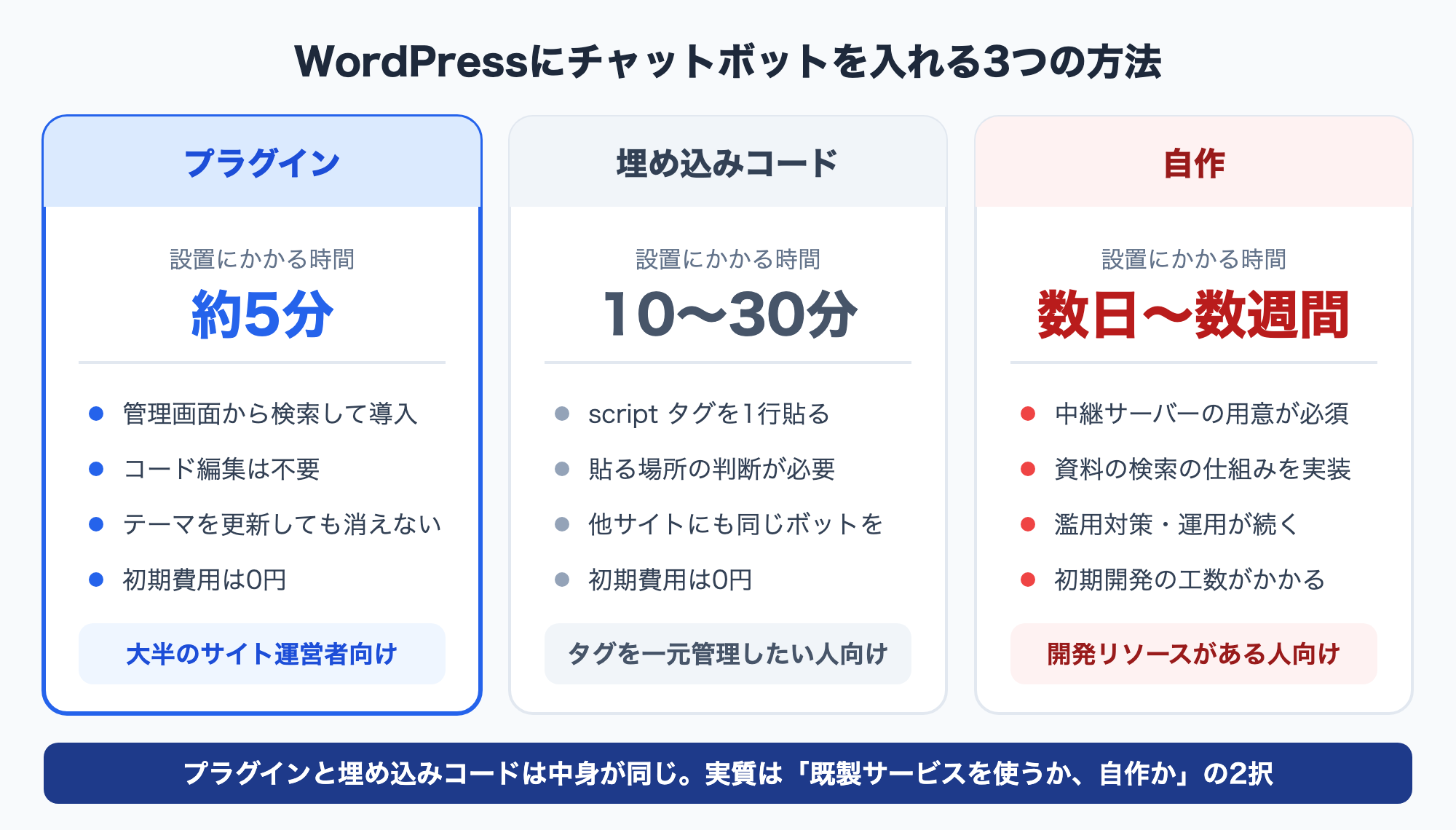
| Plugin | Embed snippet | Build your own | |
|---|---|---|---|
| What you do | Search and install from the admin screen | Paste one <script> tag |
Develop it and host it |
| Skills needed | None | Basics of themes or tag management | Web development and AI implementation |
| Setup time | About 5 minutes | 10-30 minutes | Days to weeks |
| Upfront cost | None | None | Development effort |
| Monthly cost | Depends on the service plan | Same | API usage plus hosting |
| Survives a theme change | Yes -- settings persist | Depends where you pasted it | Yes |
| Best for | Most site owners | Teams running the same bot beyond WordPress | Teams with custom requirements and developers |
The key point: a plugin and an embed snippet are not opposing choices. Most chatbot services load the same <script> tag underneath. The plugin is simply a thin wrapper that lets you configure it safely from the WordPress admin.
So the real decision is between using an existing service (plugin or snippet) and building your own. Once you pick the former, the installation method is a secondary question.
2. How far "free" actually goes
At least three different things get called "free" in this space. Keeping them apart saves you from surprises after installation.
Three kinds of free
Type 1: The plugin itself is free
Plugins distributed through the official WordPress.org directory are GPL-licensed and free. That means the software is free -- it says nothing about the cost of generating AI answers. A large language model runs behind every reply, and someone pays for that.
Type 2: The service has a free tier
Some services offer a free plan with caps on monthly answers and on how many documents you can register. Whether it survives real traffic depends entirely on those caps -- they range from "three questions a day," which is only a demo, to limits that comfortably cover a small site.
Type 3: Fully self-hosted
You write the code and call an AI API directly. There is no service fee, but there are API charges, hosting costs, and development time. It is less "free" than "the bill goes somewhere else."
Where the free tier ends
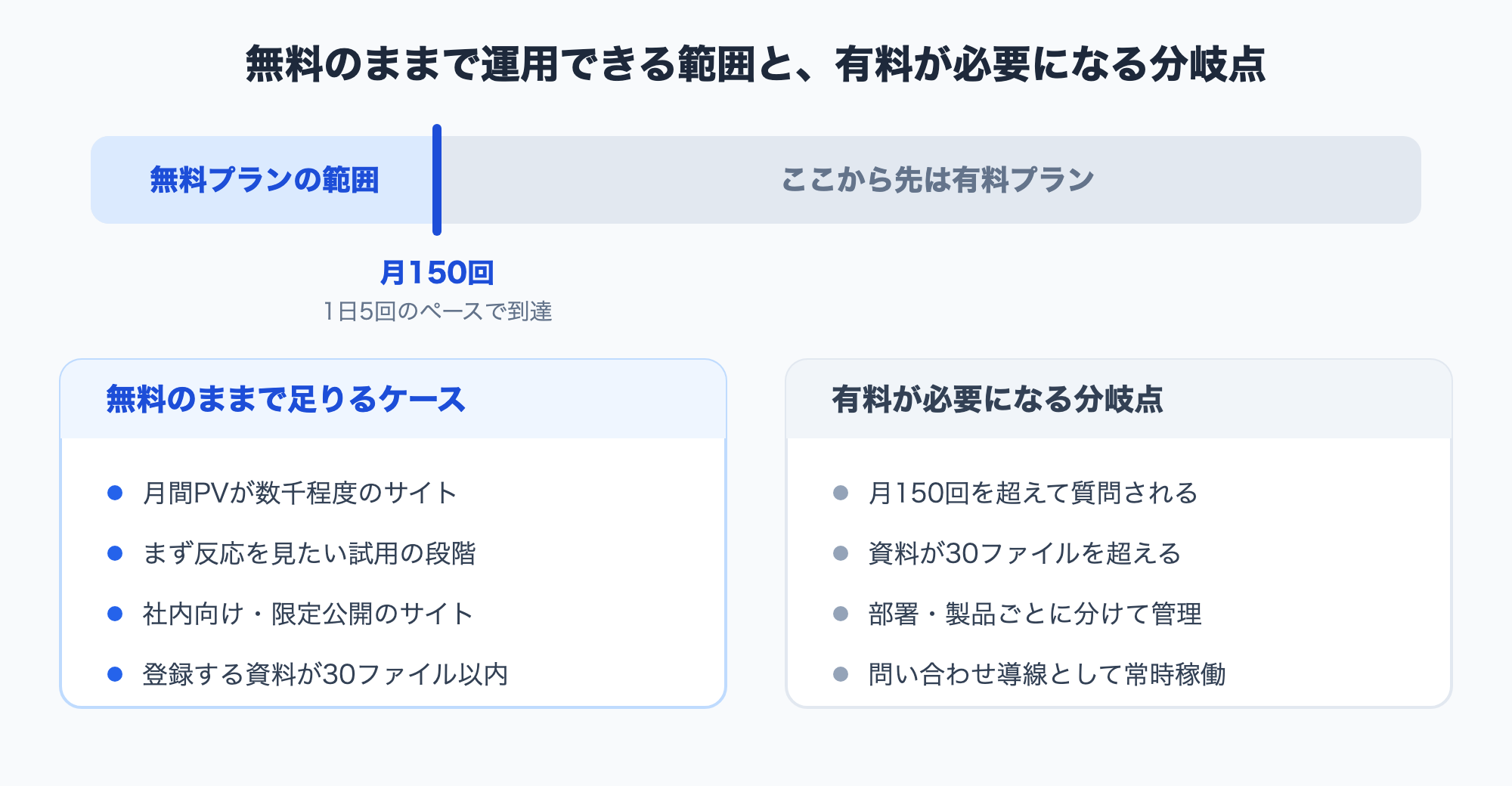
Whether a free plan is enough comes down almost entirely to monthly answer volume. Here are the numbers for Monoshiri AI as a reference point.
| Free | Light | Standard | Pro | |
|---|---|---|---|---|
| Monthly price (tax incl.) | 0 JPY | 2,980 JPY | 7,980 JPY | 29,800 JPY |
| AI answers per month | 150 | 1,000 | 3,000 | 20,000 |
| Folders | 1 | 5 | 10 | 30 |
| Files per folder | 30 | 100 | 300 | 300 |
| Chat widget | 1 (150/month) | 1 | 1 | 1 |
| Users | Unlimited | Unlimited | Unlimited | Unlimited |
As of August 2026. See Pricing for current details.
When the free plan is enough
- A corporate site or blog with a few thousand monthly page views
- An early stage where you mainly want to see whether visitors engage
- Internal or unlisted documentation sites
When you need to pay
- More than 150 questions a month -- five questions a day gets you there
- More than 30 files to upload, or a need to organize them by department or product
- You want the chatbot running continuously as a support channel, since hitting the cap pauses answering
To be blunt: once a chatbot starts working, the free allowance runs out fairly quickly. Treat a free plan as a way to verify the idea on your own site, and if you expect to approach 150 answers a month, plan for a paid tier. If you go several months without approaching the cap, that itself is useful information -- you are not getting many questions.
3. Installing via plugin
This is the easiest route. Below is the actual flow using monoshiri AI Widget, the plugin we publish.
Setup steps
- Create an account and get your widget embed code. Create a widget in the service dashboard and copy its embed code.
- In WordPress, go to Plugins > Add New, search for "monoshiri AI", then install and activate it.
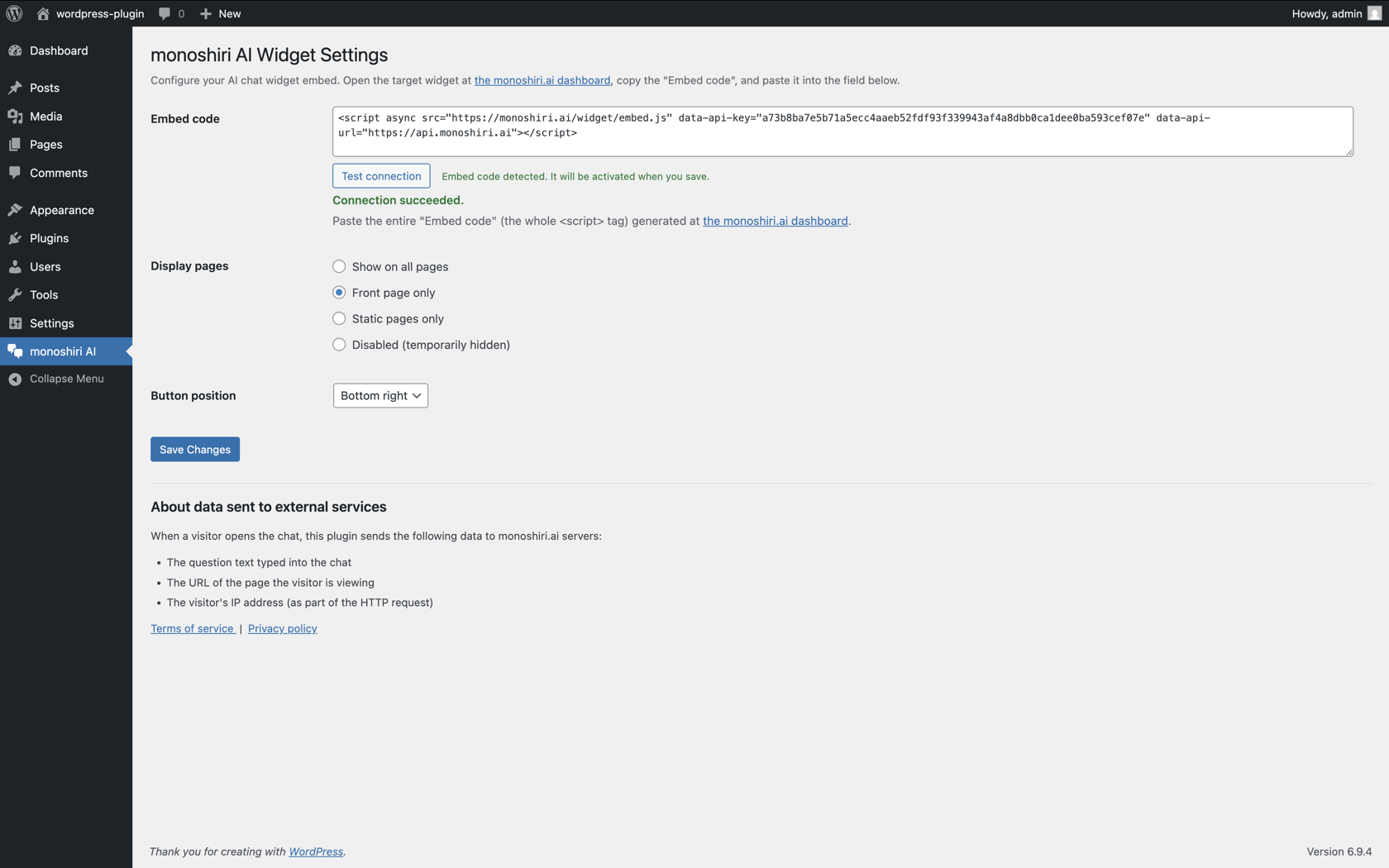
- Open the new settings screen in the left menu, paste the embed code, and save. You also choose where the widget appears here (all pages / front page only / static pages only / disabled).
- Open your site and confirm the chat button appears in the bottom-right corner.
No code editing anywhere. Because you never touch header.php or functions.php, your settings survive theme updates and theme changes -- the practical advantage of the plugin route.
What to upload first
The quality of a chatbot is decided almost entirely by the documents it reads. Start with these three:
- Your existing FAQ page (copy it into a single file as-is)
- Pricing and service description materials (PDF and Word files work directly)
- How-to and procedure manuals
You do not build scenarios or decision trees. Upload the documents and the AI answers from their contents. For how to write documents the AI answers from more accurately, see How to write internal documents an AI can actually answer from.
Reading conversation logs in the admin
Do not stop at installation -- look at what visitors actually asked. In monoshiri AI Widget, saving a read-only integration key adds a conversation log page inside the WordPress admin showing visitor questions, AI answers, and the feedback they left.
Questions the AI could not answer are, quite literally, a list of information missing from your site. Add them to your FAQ, replace the file, and they get answered next time.
4. When an embed snippet is the better choice
You can also paste the <script> tag directly instead of using a plugin. Which is better depends on the situation.
An embed snippet suits you when
- You want the same chatbot on sites beyond WordPress, such as a landing page or your product itself
- You manage all third-party tags centrally through Google Tag Manager
- You want fine-grained control over which pages show the widget
A plugin suits you when
- Theme updates or a theme switch are on the horizon and you want to avoid losing the pasted code
- Several people run the site and settings should be visible in the admin
- Nobody on the team can or wants to edit files directly
If you do paste it manually, avoid editing the parent theme's header.php. Use a child theme, the "Additional JavaScript/HTML" field in the theme customizer, or a tag manager. Direct edits to a parent theme get overwritten on update.
Our broader thinking on chat widgets across any website is in the chat widget implementation guide, and the WordPress-specific requirements and steps live on the WordPress integration page.
5. The real cost of building your own
"Calling the AI API directly should be cheaper" is a common thought, and technically it is right. The gap between a working prototype and something you can run in production is wider than it looks, though.
What you actually have to build
At minimum, a usable homegrown chatbot needs all of the following:
- Frontend: chat button and window, mobile handling, and CSS that does not collide with your existing site
- Server: a relay so the API key stays hidden (calling an AI API straight from the browser exposes your key)
- Document retrieval: a way to find the relevant passages in your material and pass them to the model -- retrieval-augmented generation, or RAG. That means splitting documents, indexing them, and tuning retrieval quality
- Abuse protection: rate limiting and misuse detection. Skip it and strangers will hammer your API while you get the bill
- Operations: reviewing logs, keeping up with model updates, and re-ingesting documents whenever they change
Where the money goes
The visible monthly cost is AI API usage plus hosting. At small volumes that can land between a few hundred and a few thousand yen, which looks cheaper than a subscription.
Two costs usually get overlooked:
- Initial development: items 1-4 take an experienced developer days to weeks. Outsourced, it runs into the hundreds of thousands of yen
- Ongoing operations: re-ingesting changed documents, adapting to model updates, fixing bugs. When the person who built it moves on, you are left with a system nobody can touch
A rule of thumb: building your own is reasonable if you have development capacity and genuinely custom requirements -- internal system integration, unusual authentication, a bespoke UI. Otherwise, a few thousand yen a month for an existing service is cheaper than doing all of the above yourself.
6. Common problems after installation
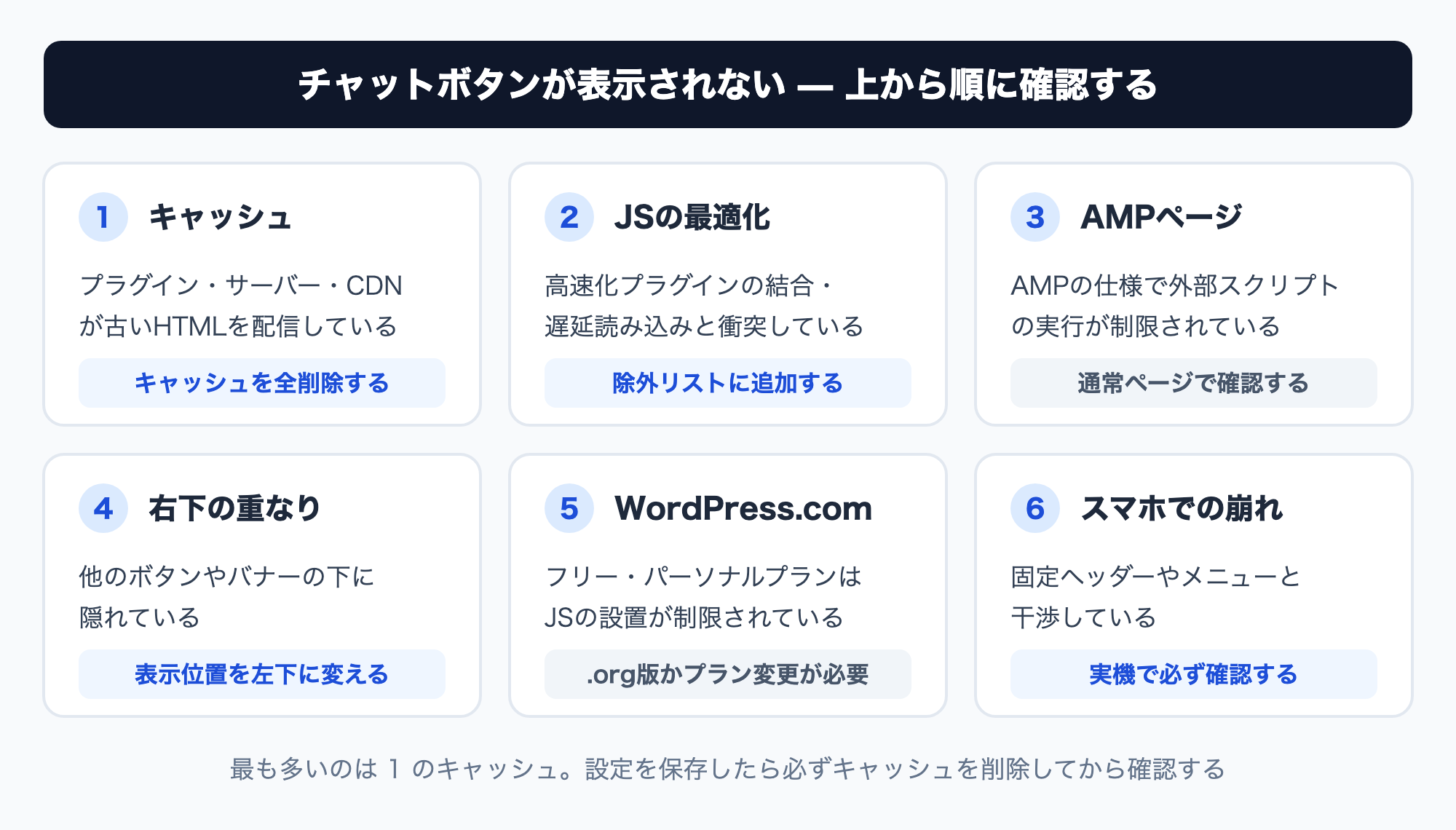
When the button does not appear, it is nearly always one of these.
Cached HTML
By far the most common cause on WordPress. A caching plugin, your host's cache, or a CDN is still serving old HTML, so the script never appears. After saving your settings, purge every cache before checking. Force-reload the browser too (Windows: Ctrl+F5, Mac: Command+Shift+R).
JavaScript optimization and deferred loading
Speed plugins that combine, minify, or defer JavaScript can break a chatbot script. monoshiri AI Widget loads asynchronously via wp_enqueue_scripts, but adding it to the optimizer's exclusion list resolves nearly all such cases. Most speed plugins have that setting.
AMP pages
On pages served through an AMP plugin, the AMP specification restricts external scripts. monoshiri AI Widget deliberately does not render on AMP pages. Expect it to work on regular pages only.
The bottom-right corner is crowded
Floating contact buttons, cookie consent bars, and other chat tools all compete for that corner. Move the widget to the bottom-left, or revisit the settings on whatever is overlapping. Running two chat buttons at once confuses visitors and is best avoided.
WordPress.com hosting
The Free and Personal plans on WordPress.com restrict JavaScript, so external chatbots do not run. You need the Business plan or higher, or a self-hosted WordPress.org installation. If you are unsure which you have, being able to install plugins from the admin is a good indicator.
Broken layout on mobile
Most widgets switch to full-screen on phones, which can collide with sticky headers or slide-in menus. Always open your site on a real phone after installing. Narrowing a desktop browser window will not reveal every problem.
7. So which should you choose?
The decision is simple.
- One WordPress site, and you want to try it -- use a plugin. Collect real questions on the free plan, then decide about paying
- You need the same bot beyond WordPress, or you centralize tags -- use the embed snippet
- You have custom requirements like internal system integration, plus developers -- consider building it, but budget honestly for initial development and ongoing operations
Whichever route you take, the thing that matters most is the quality of the documents you upload. A chatbot's usefulness depends far less on tool selection than on whether your FAQ and manuals are current and actually contain the answers. What decides success is whether you can spend time in the first month reading conversation logs and fixing your documents.
Summary
- There are three installation routes -- plugin, embed snippet, and DIY -- but the real choice is between an existing service and building your own
- "Free" means three different things: a free plugin, a free service tier, or fully self-hosted. Confusing them leads to surprises
- The free-tier limit is essentially monthly answer volume. Monoshiri AI's Free plan allows 150 a month, which five questions a day reaches
- The plugin route takes about five minutes with no code editing, and settings survive theme updates
- DIY looks cheap monthly, but initial development and ongoing operations are the real cost. Only worth it with development capacity
- Most "it does not appear" cases are caching or a conflict with a JavaScript optimizer. Also note AMP and WordPress.com restrictions
- More than tool selection, document quality and the habit of reading logs and fixing them determines the outcome
Share this article
Related Articles
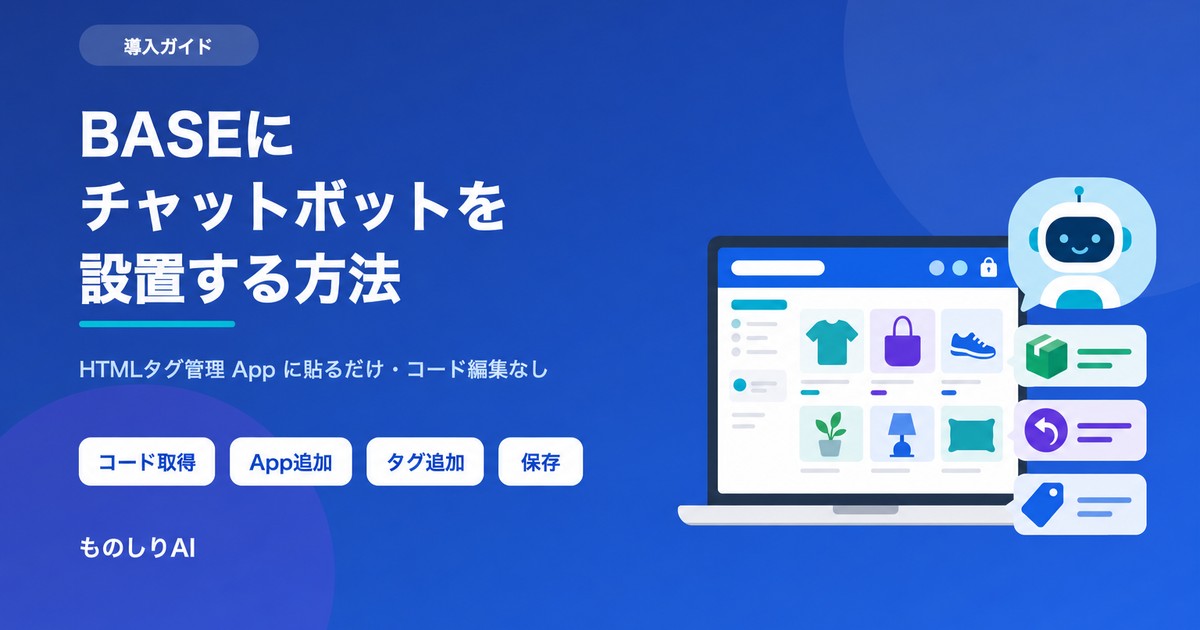
How to Add a Chatbot to BASE -- A Free Setup via the HTML Tag App (2026)
A step-by-step guide to putting an AI chatbot on a BASE online shop using the HTML Tag Management app. What the free tier covers, which documents make it answer shipping and return questions, and what to check when the button never appears.
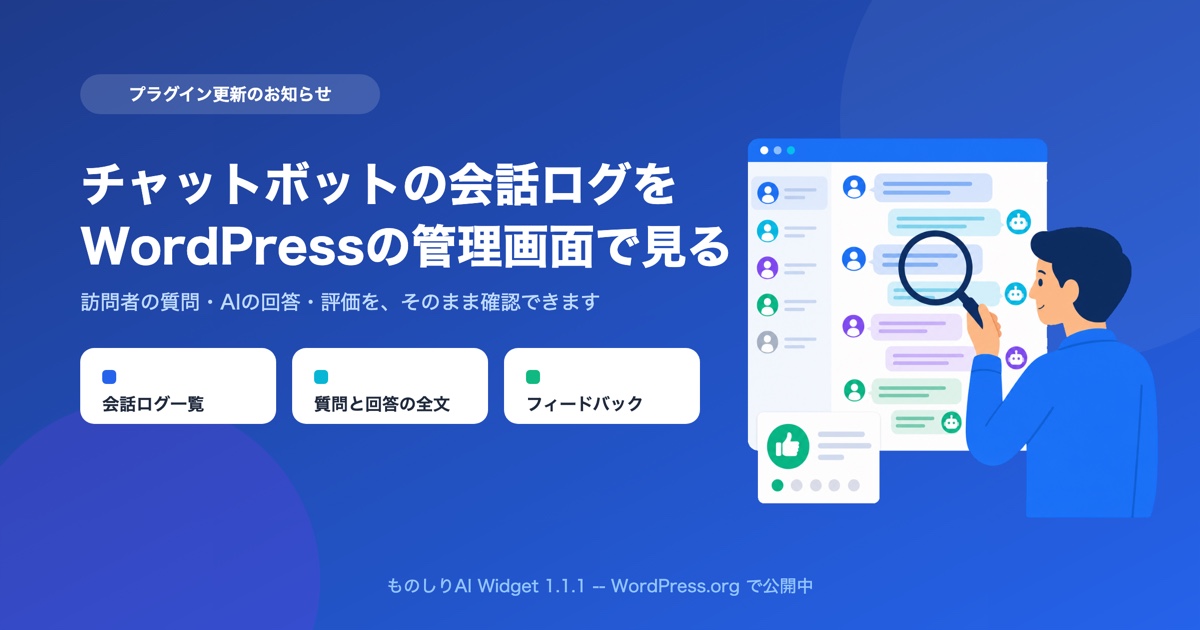
You Can Now Read Your Chatbot's Conversation Logs Inside the WordPress Admin
monoshiri AI Widget 1.1.1 is live on WordPress.org. Save a read-only integration key and you can read visitor questions, AI answers, and feedback as WordPress chatbot conversation logs, without leaving your admin screen.
How to Add a Chatbot to STUDIO -- The Custom Code Method, Step by Step (2026)
How to install an AI chatbot on a site built with STUDIO, following the actual settings screen. Covers why a paid plan is required, why nothing shows up in preview, and why the Embed box is the wrong place for it.


![Automate Website Inquiries with AI -- A Chat Widget Implementation Guide [2026 Edition]](/blog/chat-widget-guide/header.jpg)