Once a chatbot is live on your site, the thing you most want to know is simple: what are visitors actually asking?
In practice, the answers usually sit behind a separate service's dashboard. Checking them never quite fits into the rhythm of a WordPress update session, and the chatbot ends up installed and ignored.
With versions 1.1.0 and 1.1.1 of our WordPress.org plugin monoshiri AI Widget, you can now read conversation logs directly in the WordPress admin. This article covers what the new screen shows, how to turn it on, and how to turn those logs into a better chatbot.
- WordPress.org listing: https://wordpress.org/plugins/monoshiri-ai-widget/
- Latest version: 1.1.3 (updated August 14, 2026; WordPress 7.1 compatible)
- License: GPLv2 or later (the plugin itself is free)
- Feature details: WordPress integration page
What this article covers
- What the new "Conversation Logs" screen in the WordPress admin shows you
- The three steps to enable conversation logs
- Why the integration key is read-only
- How to use conversation logs to improve answer quality
- Where we stand on WordPress 7.1 support
1. The new "Conversation Logs" screen
Save an integration key on the plugin settings screen and a Conversation Logs submenu appears under "Monoshiri AI" in the WordPress left menu. Open it and you can review what visitors said to the chatbot on your site without leaving WordPress.
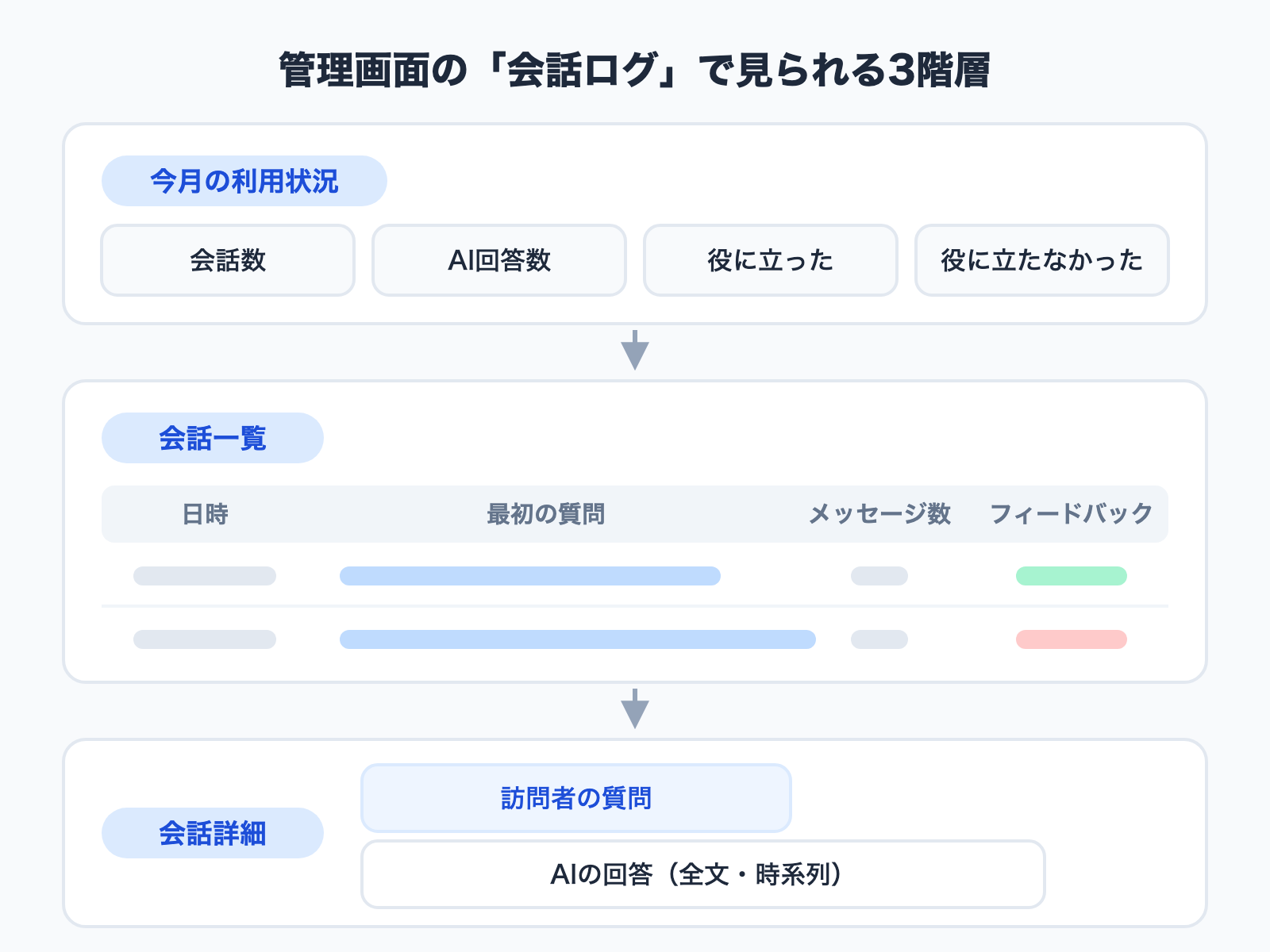
The screen has three levels.
This month's usage
Four numbers sit across the top.
| Metric | What it counts |
|---|---|
| Conversations | Conversations where a visitor opened the chat and asked something |
| AI answers | Replies the AI returned |
| Helpful | Conversations a visitor rated positively |
| Not helpful | Conversations a visitor rated negatively |
At a glance you get both "how much is this being used this month" and "are the answers landing."
Conversation list
Below that is a list of conversations showing four columns: date and time, first question, message count, and feedback. It loads 20 at a time, with a "Load older conversations" button at the bottom to go further back.
The first question is a link, so anything that catches your eye opens directly.
Conversation detail
Open a single conversation and you see the visitor's questions and the AI's answers in full, in chronological order. Visitor messages and AI replies are separated by background color, each with its own timestamp. Timestamps follow your WordPress timezone setting, so times read the same way as everywhere else in your admin.
You are looking at the actual text, not a summary, so you can judge exactly how far the AI got with each question.
2. Why we put it inside the admin
Conversation logs were already available in the Monoshiri AI dashboard. We still built a screen on the WordPress side, for one reason.
The more places there are to look, the less anyone looks.
Whoever runs a WordPress site opens the admin most weeks anyway, to publish a post or update plugins. Put conversation logs in that path and "take a look at this week's questions while I'm here" becomes a habit. Require a separate login somewhere else and people check it for the first week, then stop within a month.
A chatbot is not finished the moment it goes live. It becomes genuinely useful when you read what visitors ask and keep adding material in response. We put that first step where the friction is lowest.
3. Setup in three steps
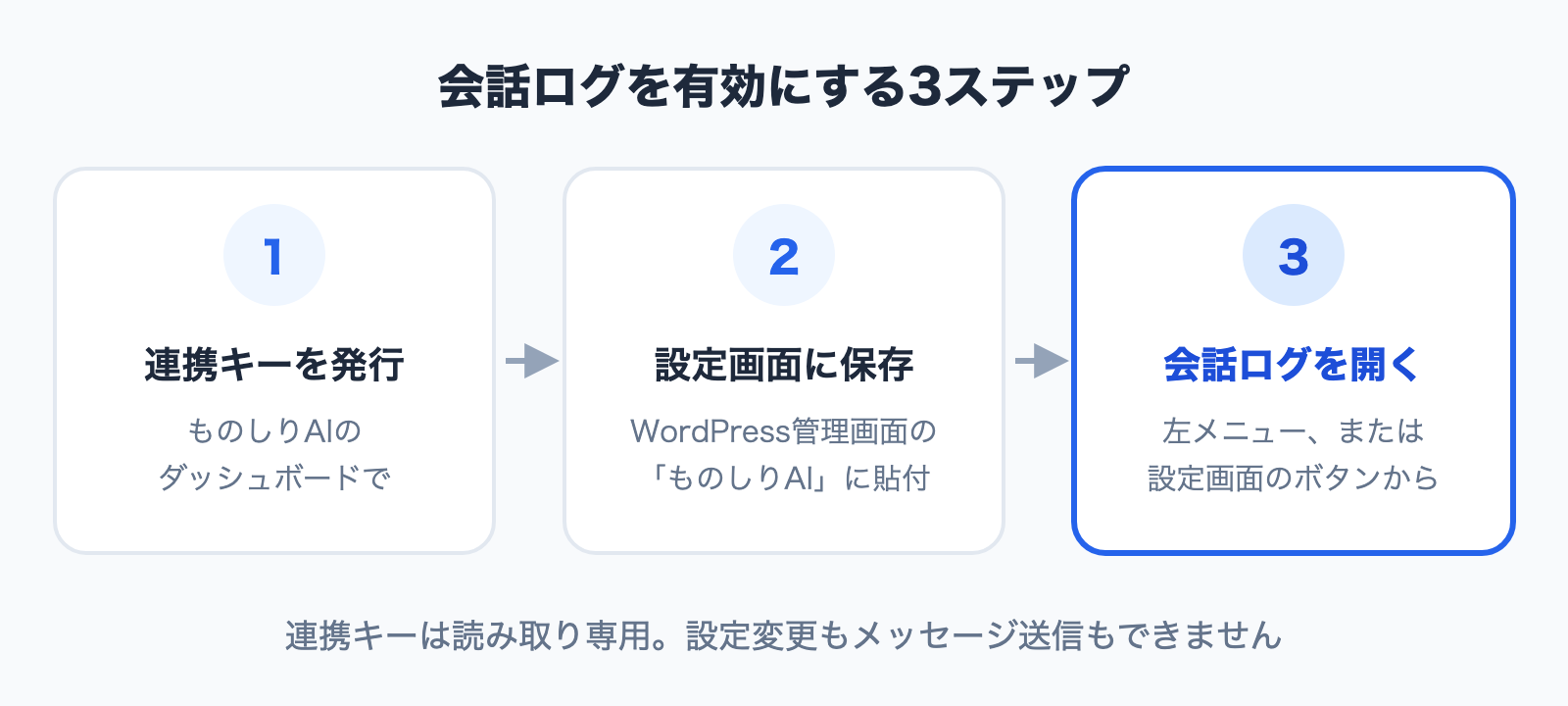
If the widget is already on your site, the only extra work is setting the integration key. If it is not installed yet, How to Add a Chatbot to WordPress for Free compares the three ways to do it, and the chat widget implementation guide covers widget design more broadly.
Step 1: Issue an integration key
In the Monoshiri AI dashboard, open the widget embed screen and issue a key from the WordPress Integration section.
The key value is shown only once, right after you issue it. It cannot be displayed again once you leave the screen, so copy it there and then. If you lose it you can issue a new one, but doing so invalidates the previous key.
Step 2: Save it in the plugin settings
In the WordPress admin, open Monoshiri AI and paste the key into the Integration key (conversation logs) field, then save.
This field is optional. If you do not plan to read the logs, leave it empty -- the chatbot itself works exactly the same either way.
Step 3: Open the conversation logs
After saving, an Open conversation logs button appears on the settings screen. The same screen is reachable from Monoshiri AI > Conversation Logs in the left menu.
If nothing has happened yet, you will see "No conversations yet." Records start accumulating as soon as visitors use the chat.
4. The integration key is read-only
Conversation logs contain exactly what visitors typed. That is precisely why this key's permissions are narrow by design.
- It is read-only. It cannot change settings and cannot send messages
- It is a different key from the one in your embed code. The embed code's key appears in the HTML that visitors can see; the integration key is stored in your WordPress database and never leaves the admin
- Only WordPress users with site administration rights (
manage_options) can open the conversation log screen - Uninstalling the plugin deletes the integration key from the database
- If you no longer need it, you can revoke the key from the dashboard
Hesitating to store an external service's key in WordPress is a reasonable instinct. That is why we scoped the key so that even in a worst case it cannot be used to change anything. Our broader approach is described on the security page.
5. Putting conversation logs to work
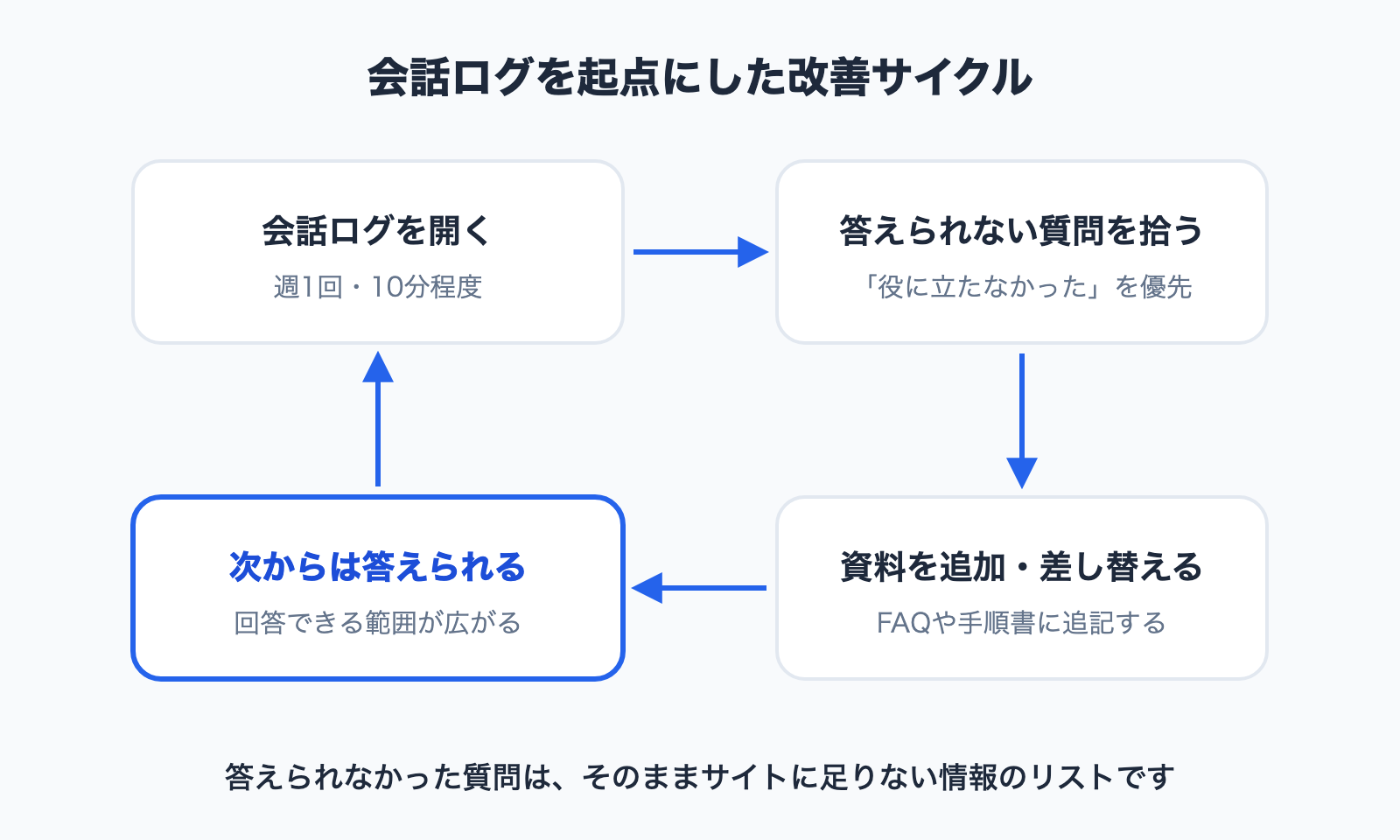
The real value of conversation logs is not in the frequently asked questions. It is in the questions that were answered badly.
Unanswered questions are a list of what your site is missing
If the answer is not in the uploaded material, the AI cannot state it clearly. Which means every question the AI stumbled on is a piece of information your site does not publish.
Work through the conversations marked "not helpful" first and the gaps become concrete fast. Add that content to your FAQ or replace the source file, and the next visitor gets an answer.
The phrasing itself is a content brief
Visitors do not use your internal vocabulary. What you call an "initial consultation" internally, a visitor asks as "what do I need to do first?"
That real phrasing is primary source material when you write FAQ headings and page titles. Keyword tools will not surface it -- these are the words only your site's visitors use.
A pace that sticks
- Open the conversation logs once a week (about 10 minutes)
- Read the conversations marked "not helpful" first
- Pick just three questions that went unanswered
- Add material that answers those three
Rather than trying to fix everything at once, three per week is the pace that lasts. For how to write documents the AI answers from more accurately, we shared test results in How to write internal documents an AI can actually answer from.
6. The bug fixed in 1.1.1
When conversation logs shipped in 1.1.0, the Conversation Logs submenu did not appear in the left menu. It was registered under the wrong parent, so the only way to reach the screen was by typing the URL directly.
1.1.1 fixes that and also adds an Open conversation logs button to the settings screen, shown once an integration key is saved.
If you are on 1.1.0, please update to 1.1.1 from Plugins in your WordPress admin.
7. Where we stand on WordPress 7.1
WordPress 7.1 is scheduled for release on August 19, 2026.
monoshiri AI Widget completed compatibility testing ahead of that release. We verified on a WordPress 7.1 Release Candidate that both the settings screen and the conversation logs screen run without errors, and the version published on WordPress.org now declares "Tested up to: 7.1".
WordPress 7.1 introduces changes such as the iframed post editor and new default heights for form controls, but monoshiri AI Widget does not depend on either, so nothing was affected.
Here is what is confirmed today.
| Item | Status |
|---|---|
| WordPress | 6.0 or later (tested up to 7.1) |
| PHP | 7.4 or later |
| Theme | No dependency (rendered as a floating element) |
| Editor | Both the block editor and the classic editor |
If any issue turns up on 7.1, we will note it here and in the plugin's changelog.
8. It works on the free plan
An earlier version of the plugin description incorrectly stated that using the widget required a paid plan. That was corrected in 1.0.3, but it is worth restating clearly.
The chat widget works on the free plan. The free plan allows 150 answers per month.
| Plan | Monthly price | Answer limit |
|---|---|---|
| Free | 0 JPY | 150/month |
| Light | 2,980 JPY | 1,000/month |
| Standard | 7,980 JPY | 3,000/month |
| Pro | 29,800 JPY | 20,000/month |
Answers from the widget and questions asked in the admin share the same monthly limit, which resets on the first of each month. Every plan has unlimited users, with no setup fee and no minimum term. See Pricing for details.
Conversation logs are available on every plan as well.
Summary
- monoshiri AI Widget 1.1.0 / 1.1.1 lets you read conversation logs inside the WordPress admin
- The screen has three levels: this month's usage, the conversation list, and conversation detail with the full text of questions and answers
- To enable it, issue an integration key in the dashboard and save it in the plugin settings
- The integration key is read-only -- it cannot change settings or send messages, and it is separate from the key in your embed code
- 1.1.1 fixes the missing Conversation Logs submenu. Please update if you are on 1.1.0
- WordPress 7.1 is supported (v1.1.2 updated "Tested up to" to 7.1)
- Both the chat widget and conversation logs work on the free plan (150 answers per month)
Installing a chatbot is the start, not the finish. Begin by spending ten minutes a week looking at what visitors are actually asking.
Share this article
Related Articles
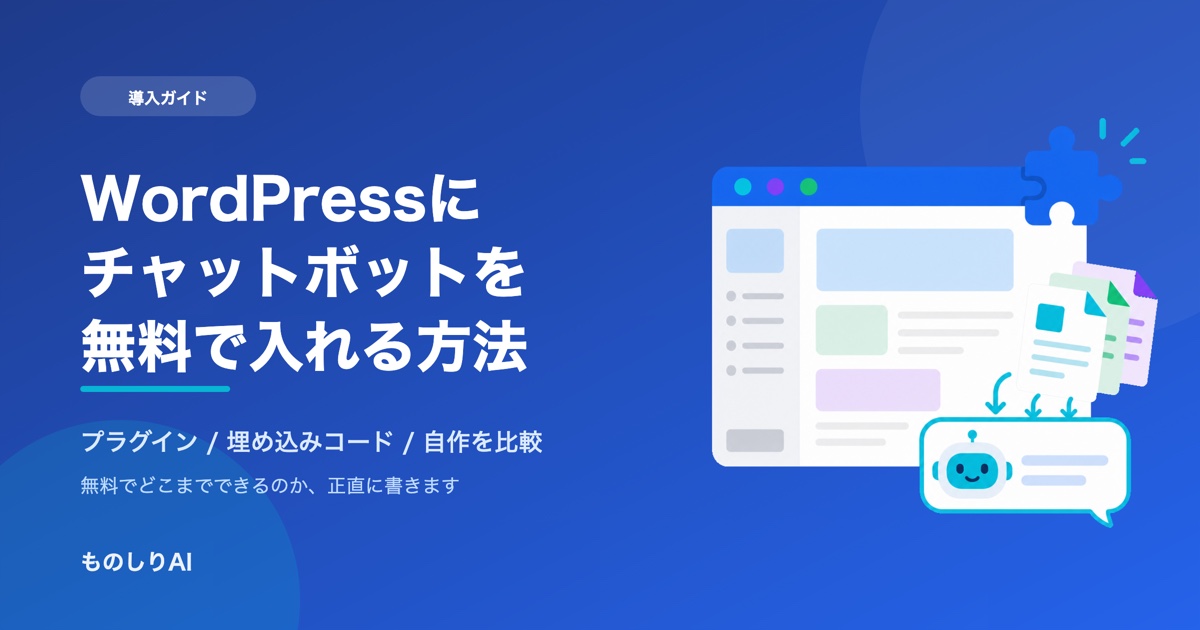
How to Add a Chatbot to WordPress for Free -- Comparing Three Approaches (2026)
Three ways to add a chatbot to your WordPress site -- a plugin, an embed snippet, or building your own -- compared honestly. What 'free' actually covers, where the paid tier starts, and the setup problems that make the button disappear, from the team that publishes a plugin on WordPress.org.
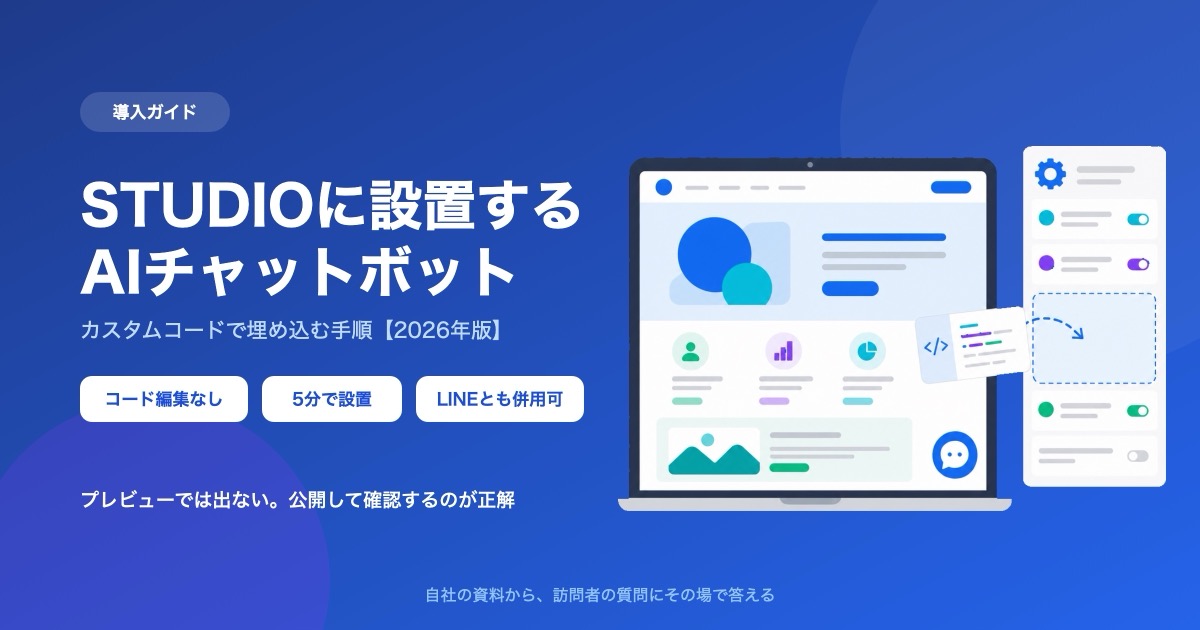
How to Add a Chatbot to STUDIO -- The Custom Code Method, Step by Step (2026)
How to install an AI chatbot on a site built with STUDIO, following the actual settings screen. Covers why a paid plan is required, why nothing shows up in preview, and why the Embed box is the wrong place for it.
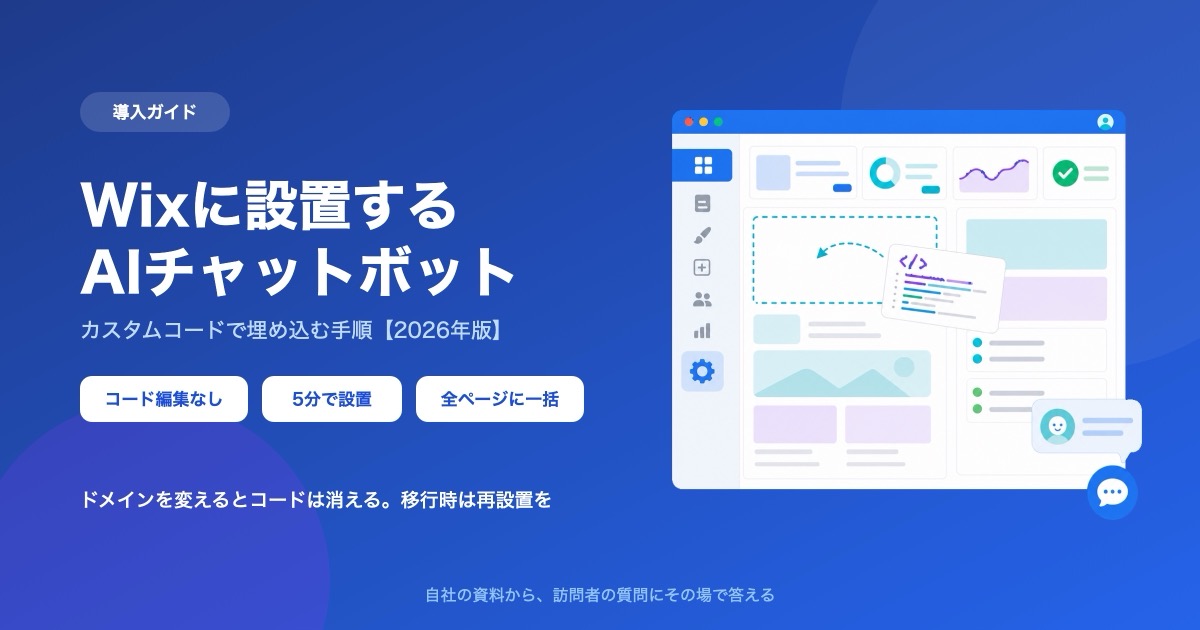
How to Add a Chatbot to Wix -- The Custom Code Method, Step by Step (2026)
How to install an AI chatbot on a Wix site, following the actual dashboard screen. Covers why a connected domain is a prerequisite, the spec where changing domains deletes your snippet, and how it differs from the built-in chat.

![Automate Website Inquiries with AI -- A Chat Widget Implementation Guide [2026 Edition]](/blog/chat-widget-guide/header.jpg)